
I used an old CELL PHONE like a RASPBERRY PI
09/07/2023
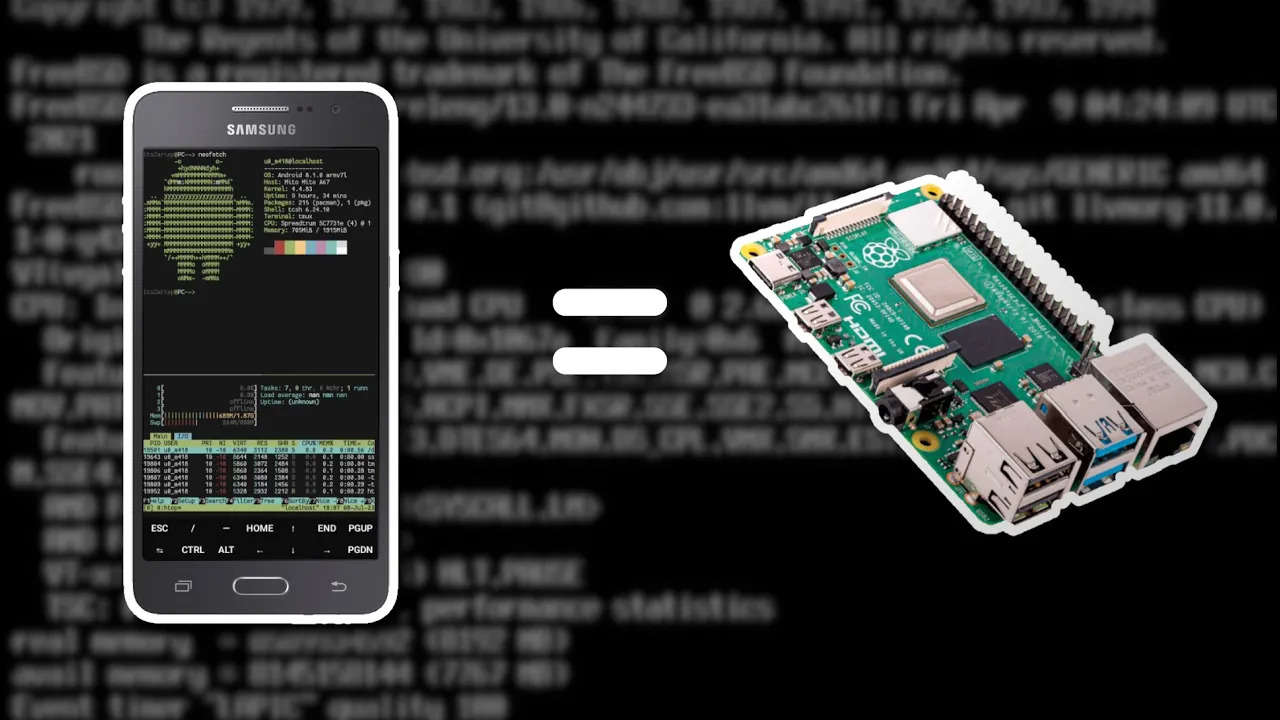
Hello everyone! How are you doing? I hope you’re doing well. The other time, while chatting in the Telegram group, we were discussing how and where to host Zariduck, a bot we have there for experimenting and hanging out. Since Oracle wouldn’t let me create an account no matter how hard I tried. Anyway, among various options, a somewhat wandering idea came to mind: taking advantage of an old cell phone I have stored away and installing Termux on it.
What is Termux?
For those who don’t know, Termux is an app that gives us a Linux shell on Android. It’s not any kind of emulation or anything like that; they are fully native binaries. Therefore, we can run anything from basic commands to complex applications. Given the phone’s low power, it occurred to me that we could compare it to a Raspberry Pi. So in this video, I’ll show some use cases and comparisons. So without further ado, let’s get started!
Configuring the Device
In this case, we’re looking for the best performance, so the best thing to do is strip all the bloatware off the phone, like Google services. This way we’ll have more available RAM, something this phone is quite lacking in. Additionally, since the phone barely has any storage, it will help us save more things.
As for installing Termux, it’s not rocket science. You can download an APK from the F-Droid page, and upon opening it, we run pkg update.
Configuring Termux
In my case, since I prefer Pacman and Termux supports it, I replaced “apt” with “pacman”. While not strictly necessary, this helps us have a faster package manager. It’s more noticeable on slow storage like the one on this phone, since Pacman is much faster than Apt.
Slightly outside of the configuration, using the terminal directly from the phone isn’t very comfortable, so we’ll need to install OpenSSH, which provides the SSH and SFTP protocols. The first is to access the shell from another device and the second to access the file system; the ssh server is started with the sshd command.
Now we are ready. The things I’ll do will be a bit too technical for other popular Raspberry Pi uses, such as emulation, for instance. Using Termux will strip away a lot of performance, and it’s better to use Android emulators with a controller to be more comfortable. But that goes beyond the scope of this video.
Use Cases
SSH Access
Connecting to the device is quite easy with OpenSSH on another device. We connect with the command ssh -p 8022, since Termux uses a non-default port. For SFTP, it’s sftp -P 8022. For SFTP, most modern file managers support access via SFTP, which can be useful for managing files more comfortably.
From here on, we can diverge into what we want to do. For my purpose, all I did was put the code for my bot, which is made in Python, and run it.
One detail is that, obviously, we won’t have the phone screen active all the time, but if we turn it off, we’ll notice a tremendous lag. To fix this, the best approach is to disable all battery optimizations, both the system’s and the Termux app’s. This will help mitigate the lag.
Ideas
So, we could set up, for example:
- A website
- A Telegram bot like I did
- A small database
- A mini media center if we have plenty of space
- Among many other related things.
LAN Storage
Another similar option is to use it as a home NAS via SFTP. A NAS is a storage device connected to a local network that allows sharing and centralized access to files. So, using this phone as an intermediary, we could connect from any device in the home, although an SD card is quite recommended, clearly.
Using proot-distro
So, basically, we could make a mini-server. But apart from that, a somewhat interesting feature of Termux is Proot-distro, which gives us some distributions under a Proot environment.
Basically, this allows us to change the root and use programs, libraries, and other components from the root system. Thus, we can have, for example, Debian or Arch on a different system without needing to create a virtual machine.
Although it has its respective limitations, without going too far, an idea that comes to mind is that if we are developers, instead of creating an ARM virtual machine, we could try using this as an alternative to test how software runs on an ARM system.
Although there are several ARM architectures, in my case, this is ARMv7l, meaning 32-bit. ARMv8.x is 64-bit, although it has sub-versions. Essentially, they are the same with security and performance improvements. There is also the more modern ARMv9, but if we are going to use a somewhat old cell phone, I doubt it has it.
Running Programs with Graphical Interfaces
Aside from that, we could also use the phone as support for running programs. I mean, Termux has a repository called “x11”, which includes libraries and programs for X11: programs with graphical interfaces like GIMP, Inkscape, or even Chromium.
If the phone is large enough, we could even use the Termux X11 application, which is basically an X11 display server for Termux, as a secondary screen. In case we aren’t interested in that, we can do port forwarding with SSH. For that, we need to install the “xauth” package on both devices and add a simple line to the SSH configuration on both devices (../usr/etc/ssh/sshd_config in Termux, /etc/ssh/ssh_config on an average Linux system).